Drying the phone is the first fix, but a warning that stays on after the port is dry can have a different cause: debris in the port, a temporary software issue, a damaged cable, or damage to the charging port. Look into the port under a light and lift out any lint with a wooden toothpick, clear the USBSettings cache on a Samsung, restart with nothing plugged in, and try a cable you know works. If your phone supports wireless charging and you have a wireless pad, wireless charging can keep it powered while the wired port is locked out.
What the moisture detected warning means
The moisture detected warning is a safety feature that turns off wired charging when the phone detects liquid in its port. On Samsung Galaxy and other IP68-rated devices, samsung.com says the block exists to prevent short circuits and corrosion in the circuitry (samsung.com). The phone is protecting itself rather than failing.
Why the warning stays on after the port is dry
asurion.com lists four reasons the alert can outlast the liquid: a temporary software glitch, a cached system state, high humidity in the room, or pocket lint in the port (asurion.com). Lint, dirt and dust in the port can interfere with the charging connection and may contribute to a warning that does not clear. On the hardware side, tpkwireless.com adds corroded pins, bent pins, or a damaged charging cable as triggers for a persistent false reading (tpkwireless.com). The steps below take those in order of effort, cheapest first.
How to clear a moisture detected error that won’t go away
Work down this list and stop when the warning clears.
- Unplug the cable, wipe the phone with a microfiber cloth, and shake it gently downward 5 to 10 times to dislodge any droplets (samsung.com).
- Let the port air-dry in a well-ventilated room, in front of a cool fan if you have one.
- Look into the port under a light and, if you can see lint or debris, avoid inserting metal objects or pushing anything deeper into the port.
- On a Samsung, clear the USBSettings cache and restart.
- Restart the phone with nothing plugged in, and check for a software update.
- Try a different cable and charger that you know work.
Dry the port properly first
Place the phone in a well-ventilated room, ideally in front of a cool-air fan, to dry the port properly asurion.com’s advice suggests (asurion.com). Leave the cable out until the port is completely dry, and give it longer than feels necessary: the outside of the phone dries well before the inside of the port does.
Warning: What not to use
samsung.com rules out hairdryers, ovens, compressed air, and cotton swabs pushed deep into the port (samsung.com).
Check the port for debris
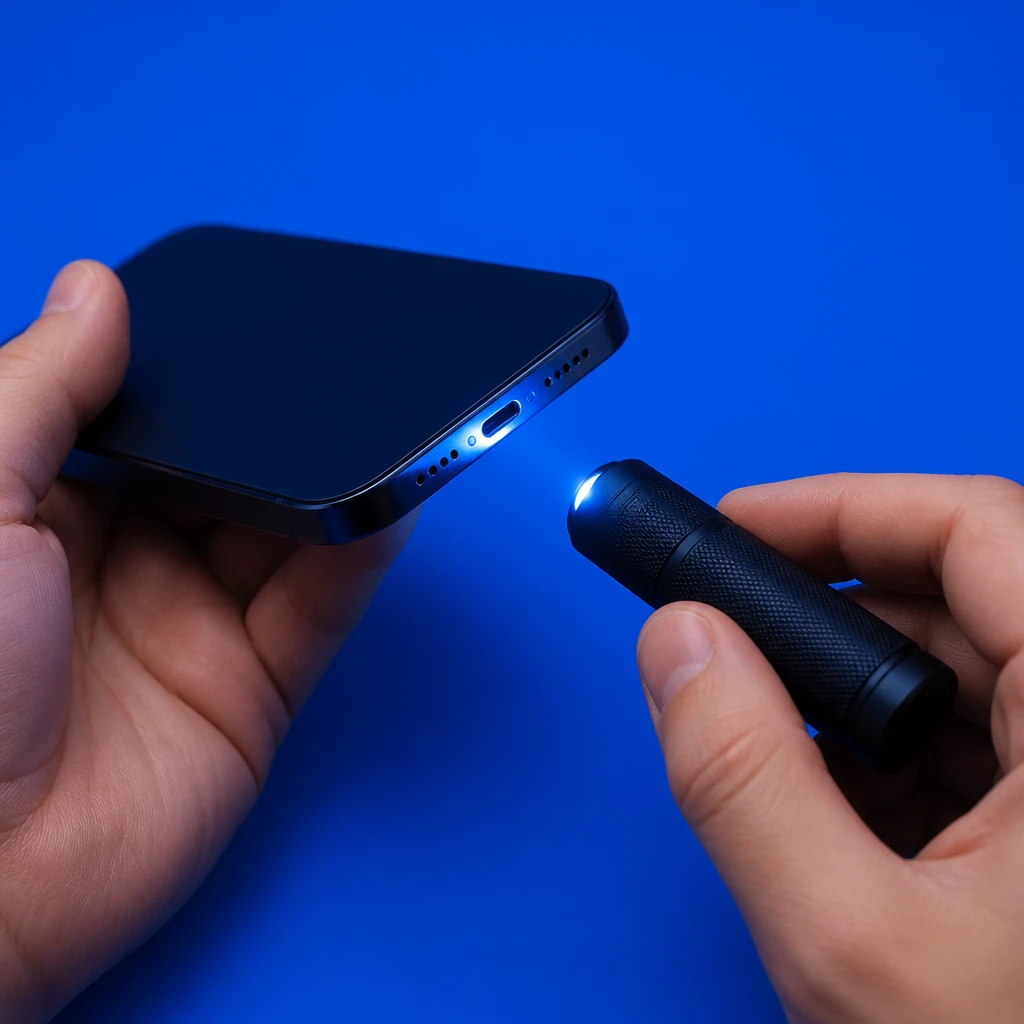
Hold the port up to a light and look in; lint packed at the bottom is easy to miss from an angle. If you can see debris, avoid using metal objects or pushing anything deeper into the port. If the debris is packed inside or cannot be removed safely, have the port cleaned or inspected.
Clear the USBSettings cache
On Samsung phones running One UI, androidpolice.com says clearing the system cache of the USBSettings app can help with a false software warning (androidpolice.com), and androidauthority.com makes the same point with a condition: it can help clear a false-positive alert when the port is completely dry (androidauthority.com). So do it after the drying, not instead of it. The path is Settings > Apps, turn on Show system apps, open USBSettings, tap Storage, tap Clear cache, then restart the phone. If your phone is not a Samsung, skip this step.
Restart the phone with the cable unplugged
samsung.com’s basic troubleshooting for a persistent false warning is a restart, a different USB cable or adapter, and a software update (samsung.com). Do the restart with nothing in the port, and check for an update while you are in Settings.
Try a different cable and charger
A damaged charging cable is one of the triggers tpkwireless.com names for a persistent false reading, so borrow a cable and adapter you know work before you blame the port, and if you have also noticed the phone charging slowly on that cable, that is a second reason to retire it.
Charge wirelessly while the warning is on
The moisture warning is intended to prevent charging through the affected wired port. asurion.com says wireless charging stays fully safe and functional on compatible phones while the moisture error is active (asurion.com), so put the phone on a wireless pad and take the steps above at your own pace. If the battery has run flat, use wireless charging if your phone supports it while the warning is on. The limit is that it needs a phone that supports wireless charging and a pad to hand.
When the charging port itself is damaged
If the warning survives drying, cleaning, the cache and a known-good cable, the port may be the problem. Corroded or bent pins are the triggers tpkwireless.com names, but inspecting the port yourself may not reveal the full extent of the damage. If the warning continues after the basic troubleshooting steps, have the charging port inspected by the manufacturer or an authorized repair provider.
Should you keep charging through the warning
No: the block exists to prevent short circuits and corrosion (samsung.com). Do not force a cable into the port while the moisture warning is active.
If the warning is still on after the port has dried, the cache is cleared, and a known-good cable has been tried, stop charging by cable, keep the phone on wireless charging, and book a port inspection with the manufacturer or an authorized repair provider.
How long does it take for the moisture detected warning to go away?
As long as the port takes to dry completely, which depends on how much liquid got in and how humid the room is. Leave the phone in a ventilated room in front of a cool fan and keep the cable out until then. If the warning outlasts a dry port, move on to the lint, cache and cable steps above rather than waiting longer.
Can you turn off the moisture detected warning?
Treat it as a protection to clear rather than a notification to silence: it is the phone refusing wired power to prevent short circuits and corrosion. The way to make it go away is to remove what is triggering it, using the steps above, and to charge wirelessly in the meantime.
Does the moisture detected warning appear on iPhones too?
Yes. iPhones can also display a liquid-detection alert and temporarily prevent charging through the connector. Apple provides separate guidance for liquid detected in an iPhone connector. The USBSettings cache step is for Samsung One UI only; nothing in the drying and inspection steps is tied to Samsung.
Last reviewed: 2026-09-16 (revisions: 14)