You answer a call, lift your iPhone to your ear, and hear nothing, even though the call timer is running. Before you assume the speaker is broken, check the call volume while the call is live, make sure call audio isn’t going to a Bluetooth device, and clear anything that covers the small receiver opening at the top of the screen. Those three checks cover common causes.
Why can’t I hear callers on my iPhone?
Call audio can go missing for several reasons, and most of them are settings or blockages, not broken parts. According to support.apple.com, the earpiece receiver has its own volume level during calls. You change it with the volume buttons or the Control Center slider, but only while a call is active. Apple’s support guidance also notes that if you turned in-call volume down during a previous call, the earpiece can sound completely silent on the next one.
The second common cause is audio routing. Being connected to a Bluetooth audio device in the background is a common reason call sound goes missing, because the iPhone sends the call to that device instead of to the phone, as wikihow.com describes. The third is a physical blockage. Apple says screen protectors, cases, or built-up dirt covering the narrow receiver opening frequently mute call audio (support.apple.com). drphonez.com also notes that misconfigured iOS audio settings or a temporary software glitch during call audio handoff can leave the earpiece silent.
Earpiece or speakerphone: which one has gone quiet?
Your iPhone has two separate speaker systems. The earpiece receiver at the top handles calls you hold to your ear. The bottom speakers handle speakerphone, music, videos, and ringtones, as drphonez.com explains. Apple confirms that the top earpiece receiver is a separate component from the bottom media speakers (support.apple.com). So “the speaker isn’t working on calls” can mean either one, and it helps to know which before you start. Make one call held to your ear and one on speaker, and note which one is silent.
How to fix an iPhone speaker that isn’t working on calls
Work through these steps starting with the quickest. Keep a test call going for the first two, because those settings can only be checked during a live call.
- Press the Volume Up button on the side of your iPhone while the call is in progress. In-call volume is adjusted separately from media and ringer volume, so turning up your music beforehand doesn’t affect it.
- On the call screen, tap the audio icon and choose iPhone, so the call isn’t being sent to a headset, car system, or speaker. You can also turn off Bluetooth in Settings to rule out a connected accessory. People on discussions.apple.com report this as a way to bring sound back to the earpiece.
- Take off your case and any screen protector or film that covers or overlaps the receiver opening at the top of the screen, then make another test call. Apple recommends removing display films as part of this check.
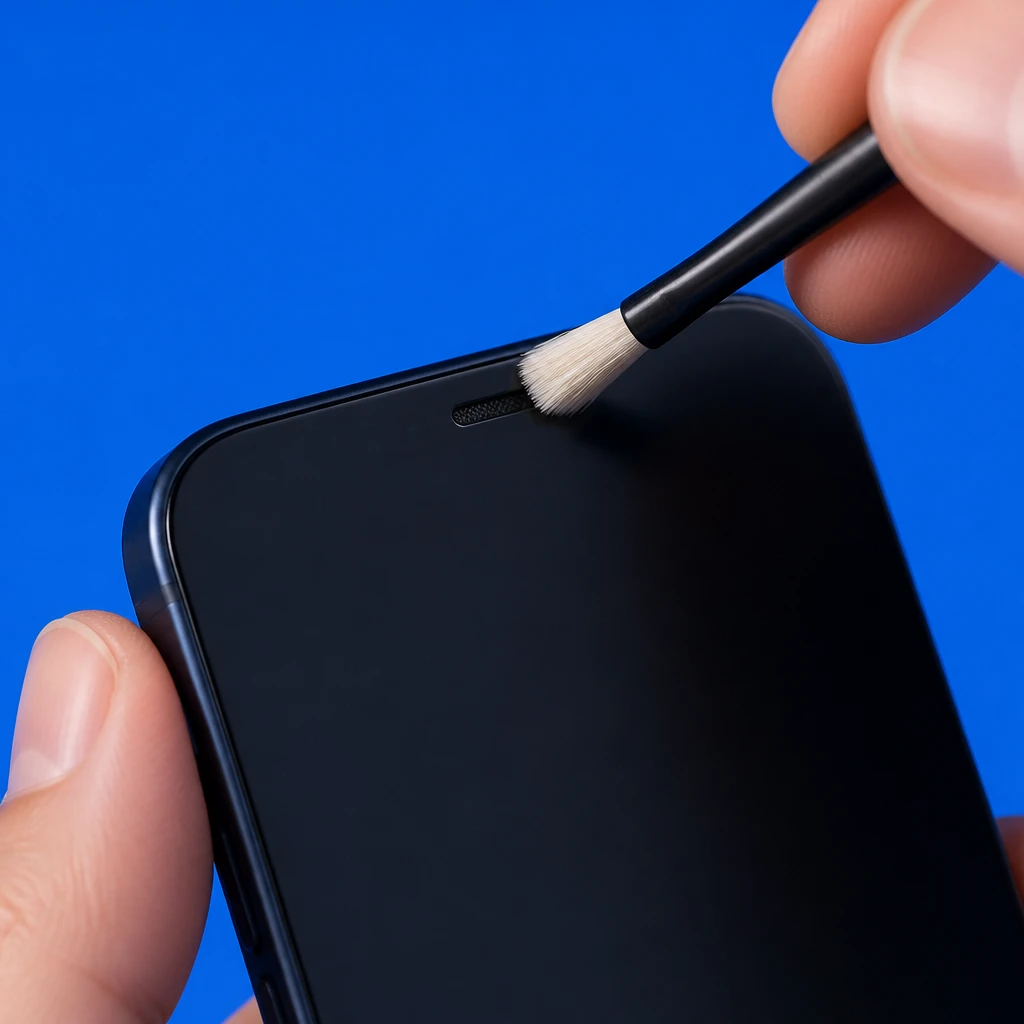
- Gently brush the earpiece receiver opening and the bottom speaker grilles with a clean, dry, soft-bristled brush to clear out dust and lint, as support.apple.com recommends. Brushing only clears what sits in the openings. It won’t fix damage inside the speaker itself. Don’t push anything sharp into the openings.
- Open Settings > Accessibility > Touch > Call Audio Routing and check that it is set to Automatic. If it is set to a headset, calls can be sent away from the earpiece.
- Restart your iPhone. If calls are still silent, Apple’s support guidance lists Reset Network Settings, found under Settings > General > Transfer or Reset iPhone > Reset. Read what it resets on the confirmation screen before you tap it.
Which fix matches what you’re hearing?
If you already know which speaker is silent, this table points you to the steps most likely to help. The causes listed are possibilities to rule out, not a diagnosis.
| What you notice | Likely cause | What to try |
|---|---|---|
| Silent or very quiet on ear calls only, maybe after an earlier call | In-call volume turned down | Press Volume Up during a live call |
| No call sound while a headset, car, or speaker is connected | Call audio routed to a Bluetooth device | Tap the audio icon and choose iPhone, or turn off Bluetooth |
| Muffled or silent ear calls with a new screen protector or case | Receiver opening covered | Remove the case and protector, then test again |
| Speakerphone and music are fine, but ear calls are silent | Earpiece receiver, its mesh grille, or call audio routing | Clean the receiver opening and check Call Audio Routing |
| Ear calls are fine, but speakerphone is silent or muffled | Bottom speaker assembly | Brush the bottom grilles, then contact repair if it persists |
Is it the speaker hardware or a setting?
The test calls from earlier can narrow it down. When media and speakerphone sound clear but ear calls produce no sound, ifixit.com places the problem with the top earpiece receiver, its mesh grille, or call audio routing. Two of those three can be checked with the steps above. When ear calls work but speakerphone is silent or muffled, quickfixiphone.com points to the lower speaker assembly at the bottom of the phone. If one speaker stays silent after you’ve cleaned it and checked the routing, a hardware fault is one possibility worth having a technician look at.
When to take your iPhone in for repair
If you have worked through every step and call audio still doesn’t come through, contact Apple Support or an authorized repair provider and ask them to check the speaker. Tell them which speaker is silent and what you’ve already tried, so they don’t repeat the same checks.
Why does my iPhone play music fine but I can’t hear people on calls?
Music and ear calls use different speakers. Music plays through the bottom speakers, while ear calls use the separate earpiece receiver at the top, which has its own volume level during calls (support.apple.com). Turn up the volume during a live call and clean the receiver opening first.
Why can callers hear me when I can’t hear them?
Start with what you hear, not what you send. Call audio may be going to a Bluetooth device, the in-call volume may be turned down, or something may be covering the receiver opening. The first three steps above cover each of these.
Can a screen protector really block call audio?
Yes. Apple says screen protectors, cases, or dirt blocking the receiver opening frequently mute call audio, and recommends removing display films and cleaning the earpiece mesh with a clean, dry, soft-bristled brush (support.apple.com).
Most iPhone calls with no sound come down to in-call volume, Bluetooth routing, or a blocked receiver opening, and you can check all three yourself in a few minutes. Find out which speaker is silent, work through the steps in order with a test call running, and save the repair visit for a speaker that stays silent after all of them.