Is your iPhone stuck in recovery mode and only showing the computer restore screen? Do not start with Restore unless you are ready to erase it. Try a force restart first; if the restore screen comes back, connect the iPhone to a computer and choose Update before Restore, because Update reinstalls iOS while trying to keep your data and Restore wipes the device.
What recovery mode means on an iPhone
Recovery mode is a built-in iOS troubleshooting state where the iPhone shows a cable-to-computer restore screen instead of starting normally. When the phone is connected to Finder, the Apple Devices app, or iTunes, the computer offers Update or Restore, according to support.apple.com. In that state, the low-level bootloader halts standard startup to allow a computer to repair or reinstall iOS, though attempting a force restart while disconnected can sometimes exit recovery mode without a computer.
That is why the next choice matters. Update and Restore both deal with iOS, but they do not treat your data the same way, and choosing too quickly can turn a recoverable phone into an erased one.
How to get an iPhone out of recovery mode without restoring first
Start with the options that do not erase the phone. Disconnect the iPhone from the computer and use the force restart sequence for your model. If the restore screen returns, connect the iPhone to a Mac Finder window, the Apple Devices app on Windows, or iTunes where that applies, then choose Update if the computer offers Update or Restore. Leave Restore until you have decided the data loss is acceptable.
Data loss warning
Restore erases the iPhone. If you are trying to save photos, messages, or app data that are not already backed up, do not choose Restore as the first move.
Try the force restart for your iPhone model
For iPhone 8, iPhone SE 2nd or 3rd generation, iPhone X, and later models, quickly press Volume Up, quickly press Volume Down, then hold the Side button until the Apple logo appears. For iPhone 7 and iPhone 7 Plus, hold Volume Down and the Side button until the Apple logo appears. For iPhone 6s, iPhone SE 1st generation, and earlier models, hold Home and the Top or Side button until the Apple logo appears. Apple lists those force restart patterns in its iPhone guide at support.apple.com.
Use the sequence that matches your model, then watch what the phone does next. If your issue is instead an iPhone black screen but still vibrates, treat that as a different symptom from a visible recovery screen.
Choose Update before Restore on your computer
When Finder, Apple Devices, or iTunes sees an iPhone in recovery mode, it can show Update and Restore. Update reinstalls the iOS system software while attempting to preserve personal files and settings, while Restore reinstalls iOS and erases the user data. If the phone contains data you still need, choose Update first. If Update cannot get the phone working and you have a backup or accept the loss, Restore is the stronger reset path.
Update, Restore, or DFU mode: what changes on the iPhone
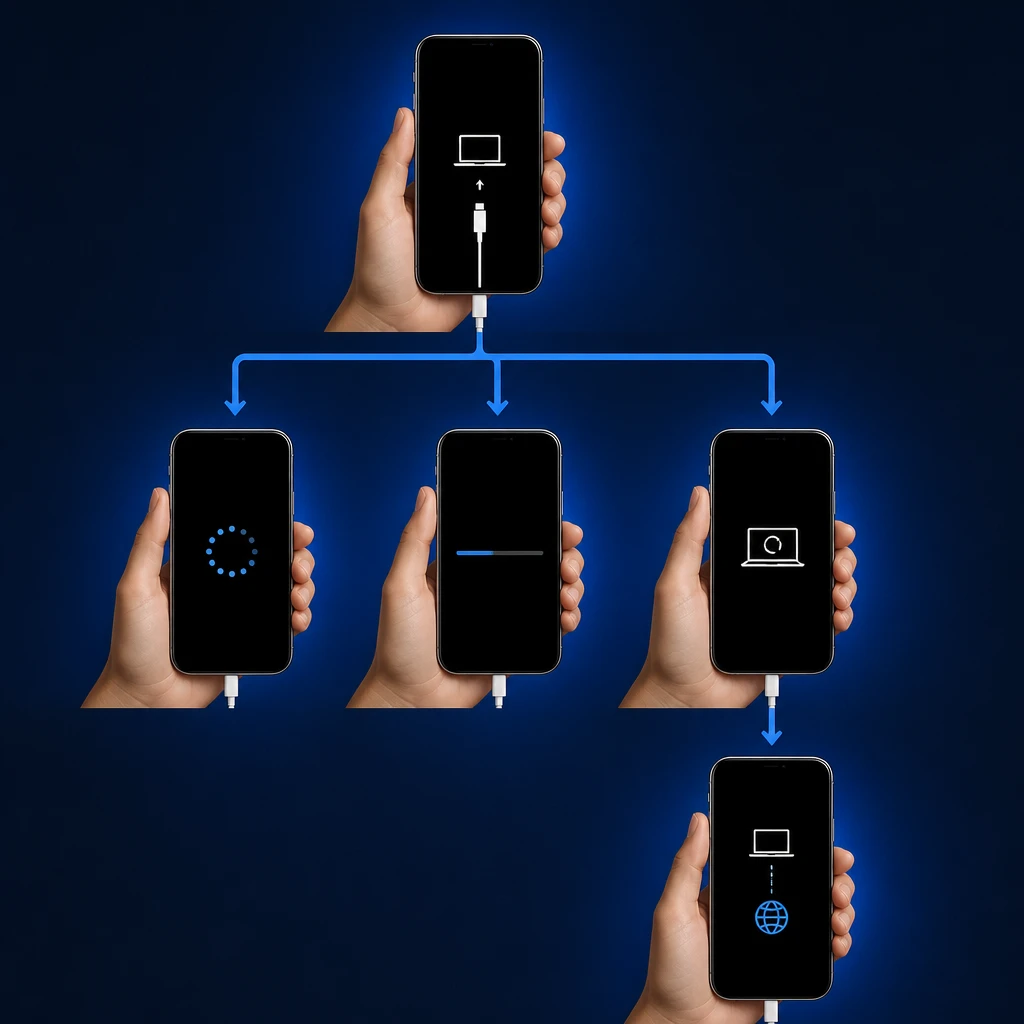
| Choice | What it does | Data risk | When to try it |
|---|---|---|---|
| Force restart | Restarts the iPhone with the model-specific button sequence | Low, because it does not reinstall iOS | Try first when the recovery screen is visible |
| Update | Reinstalls iOS over the existing system | Lower than Restore, because it attempts to preserve personal data | Try when the computer offers Update or Restore and you want to avoid erasing the phone |
| Restore | Erases the iPhone and reinstalls fresh iOS system files | High, because it wipes data and settings | Use after you accept the data loss or have a backup |
| DFU mode | Uses a deeper firmware update state with a black screen; blog.ecoatm.com describes it as bypassing the iBoot bootloader | Treat as serious; only go down this path after you have already accepted Restore’s data loss | Use when normal recovery options are not enough. Get the DFU button sequence for your model from Apple Support or a repair provider rather than guessing |
Recovery mode and DFU mode are not the same screen. Recovery mode shows the restore graphic; DFU mode leaves the screen black while the phone is in a hardware-level update state, according to blog.ecoatm.com. If the phone boots but the screen ignores your taps, see iPhone touch screen not working instead of troubleshooting a recovery-mode loop.
Why recovery mode keeps coming back
A recovery mode loop can point to a deeper problem than one stuck screen. iResQ describes recurring recovery mode as a situation where iBoot detects severe system file corruption, an incomplete software update, or hardware communication errors during startup (iresq.com). Interrupted iOS updates, insufficient internal storage during an update, corrupted IPSW firmware downloads, damaged NAND flash memory, water damage, or a stuck button may also be involved (cocosenor.com). Treat those as possibilities to rule out, not as a diagnosis from the screen alone.
What to do when Finder, iTunes, or Apple Devices will not finish
If Update starts but the phone returns to the same recovery screen, go back to the decision point instead of repeatedly choosing random options. Try the correct force restart once more, then connect again and choose Update if keeping data is still the priority. If the only remaining path offered by the computer is Restore, pause and decide whether the data loss is acceptable. A failed Update does not prove one specific part is bad; it only tells you the safer reinstall path did not finish.
When repair is the better next step
Repair becomes the better next step when the iPhone repeatedly falls back into recovery mode after the software options you are willing to try. That is especially true if there are signs that point beyond software, such as water exposure, a stuck button, or possible storage hardware trouble. When you contact Apple Support or a repair provider, tell them exactly which screen you see, whether Update was attempted, whether Restore was attempted, and whether the phone ever showed the Apple logo after the force restart.
Will recovery mode erase my iPhone?
Recovery mode by itself does not erase the phone. The choice you make next matters: Update attempts to reinstall iOS while preserving data, while Restore erases the iPhone and reinstalls iOS fresh.
Why does my iPhone go back to recovery mode after an update?
A recurring loop may be connected with system file corruption, an incomplete update, hardware communication errors, insufficient storage during an update, a corrupted firmware download, damaged storage hardware, water damage, or a stuck button. The screen alone does not prove which one it is.
Can I get photos off an iPhone stuck in recovery mode?
To keep your photos, you must get the iPhone to boot normally without erasing it. Try a physical force restart first, or select ‘Update’ when connected to a computer, which reinstalls iOS while attempting to preserve your photos, apps, and settings. Once the phone starts, back it up immediately before doing anything else. Selecting ‘Restore’ erases the device completely, wiping any photos that are not already saved in a backup.
The safest order is simple: force restart, then Update, then decide whether Restore or deeper recovery is worth the data risk. If the iPhone stays in the loop after the paths you are willing to use, take it in with a clear account of what you tried rather than repeating the same erase-or-update prompt.